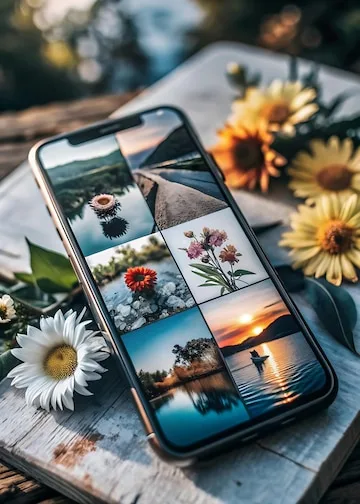
Ever wanted to combine your favorite photos into a single, beautiful collage right from your iPhone? It’s easier than you might think! With just a few taps and the right apps, you can turn your photos into fun, creative collages to share with friends, post on social media, or just keep for yourself. In this guide, I’ll walk you through the simple steps to create a picture collage on your iPhone, along with some great app recommendations and tips to get the best results.
1. Choose Your Photos
The first step to creating a picture collage is deciding which photos you want to use. Your iPhone’s Photos app makes this super easy by organizing your images by date, album, or even by people or places.
Pro Tip: Select pictures that have a consistent theme or color scheme to make your collage look more polished. For example, if you’re creating a collage of a family vacation, choose images that best capture the essence of the trip.
Here’s how to pick photos:
- Open the Photos app on your iPhone.
- Scroll through your albums or recent photos and tap on the images you want to include in your collage. You can even favorite the ones you like for easier access.
2. Use a Collage App
While the iPhone Photos app doesn’t have a built-in collage feature, there are many free and easy-to-use apps available in the App Store. Here are some of the best apps for making collages:
Canva
Canva is a versatile design app that’s super user-friendly. It has many pre-made collage templates, and you can easily drag and drop your photos to create a unique collage.
- Download Canva from the App Store.
- Open the app and sign up for a free account if you don’t already have one.
- Tap on the + (plus) button to start a new design.
- Search for “collage” in the template search bar to browse different layouts.
- Select a layout, then tap on the photo placeholders to add your own pictures.
- You can also adjust the colors, backgrounds, and even add text if you want to personalize your collage further.
Pic Collage
Another great option is Pic Collage, which offers a wide variety of templates, grids, and stickers. It’s perfect if you want to make a quick collage without too much fuss.
- Download Pic Collage from the App Store.
- Once installed, open the app and choose from Grids, Templates, or Freestyle options.
- For a simple collage, the Grid feature lets you drag and drop photos into a pre-set layout.
- You can move, resize, and rotate your photos as needed, plus you can add stickers or change the background.
3. Arrange and Customize Your Collage
Once you’ve chosen your app and loaded your photos, it’s time to arrange them into the collage. Most collage apps let you choose between different grid layouts or even let you create a freestyle collage where you place each photo wherever you want.
Here are a few tips to make your collage stand out:
- Balance your images: Try not to crowd too many photos in one area. Evenly spread out images across the collage for a cleaner look.
- Add text or stickers: If you’re making a collage for a special occasion, adding some text (like “Happy Birthday” or “Vacation Vibes”) can make it more personal.
- Adjust borders and spacing: Most apps let you adjust the spacing between photos or add a colored border. This can help make your collage feel more cohesive and professional.
4. Save and Share Your Collage
After arranging your photos and adding any personal touches, it’s time to save your creation! Whether you want to share it on social media, send it to a friend, or just keep it for yourself, saving and sharing your collage is just a tap away.
Here’s how to do it:
- Once your collage is ready, tap the Save or Export button in the app.
- Your collage will be saved to your iPhone’s Photos app.
- From there, you can easily share it on Instagram, Snapchat, or even as an iMessage or email.
Pro Tip: If you’re planning to post your collage on social media, consider the aspect ratio (square for Instagram, vertical for stories, etc.). Most collage apps let you resize your creation so it looks great on any platform.
5. Explore More Advanced Collage Features
If you’re ready to take your collages to the next level, explore some of the advanced features many apps offer. For example, Adobe Spark lets you create professional-looking collages with advanced customization options, including animated elements. Layout from Instagram is another free app you can use to make clean, simple collages with a focus on photo quality.
Conclusion
Making a picture collage on your iPhone is a fun and easy way to bring your favorite photos together into one creative project. Whether you’re using apps like Canva, Pic Collage, or even Layout from Instagram, the process is simple, and the results are always rewarding. Plus, with the ability to add text, backgrounds, and even stickers, your collages will look unique every time.
So, grab your iPhone, choose your favorite photos, and start creating! Whether it’s for a special occasion, a social media post, or just a fun project, making collages is a great way to share memories and get creative with your photos.
For more info, check out these resources: