
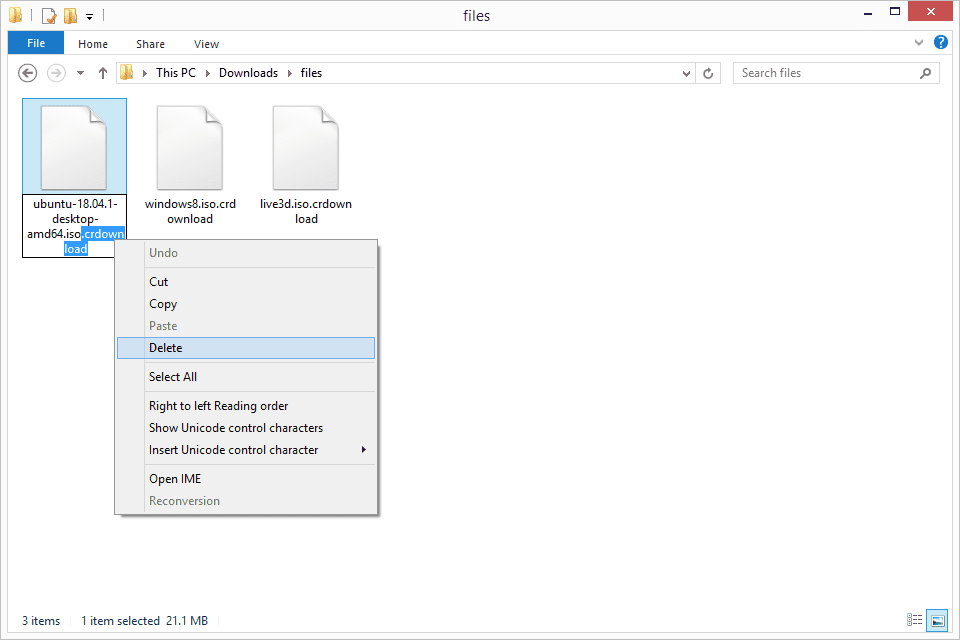
If you’ve ever downloaded a file using Google Chrome and noticed a strange file extension like “.crdownload,” you might be wondering what it is and what to do with it. These files can seem confusing, but don’t worry—understanding and dealing with them is easier than you think. In this article, we’ll break down what a CRDOWNLOAD file is, how it works, and how you can open or remove it when needed.
What is a CRDOWNLOAD File?
A CRDOWNLOAD file is a temporary file created by Google Chrome when you’re downloading something from the internet. It stands for Chrome Download and is basically a placeholder for an ongoing or incomplete download. As you download a file, Chrome saves it with the “.crdownload” extension until the download is finished.
Think of it as a work-in-progress file. Once the download completes successfully, the “.crdownload” extension is automatically removed, and the file turns into its final format (like .mp3, .mp4, .pdf, or .exe).
Why Do CRDOWNLOAD Files Appear?
These files appear for a few reasons, all tied to the downloading process:
- Ongoing Downloads: While a file is being downloaded, Chrome saves it with the .crdownload extension until the process finishes.
- Interrupted Downloads: If your download is paused or interrupted (e.g., due to loss of internet connection), the file will stay as a .crdownload.
- Incomplete Downloads: If something goes wrong during the download process—like the browser crashing or the connection breaking—the file might remain incomplete, keeping the .crdownload extension.
How to Open a CRDOWNLOAD File
If you’ve ever come across a CRDOWNLOAD file and want to open it, there are a few ways to handle it depending on whether the download is complete or not.
1. Check if the Download is Still in Progress
First, check whether the download is still in progress. Here’s how to do it:
- Open Google Chrome.
- Click on the three dots in the top-right corner of the browser.
- Select Downloads or press Ctrl + J on Windows (or Cmd + Shift + J on Mac) to open the Downloads page.
If you see the file you’re downloading listed there and it’s still downloading, just wait for the process to finish. Once complete, the file will change from a .crdownload to its correct file extension.
2. Resume the Download if It’s Paused
Sometimes, downloads are paused for various reasons. If the download is paused, you can resume it by clicking the Resume button next to the file in the Downloads page. Once resumed and completed, the file will no longer be a .crdownload.
3. Manually Open the Incomplete File
If the download was interrupted or incomplete, you might still be able to open or recover part of the file. This works best for media files like audio or video. Here’s how:
- Rename the .crdownload file by removing the “.crdownload” extension.
- Try opening the file in a program that supports incomplete media files, like VLC Media Player for videos or Notepad for text files.
Note: Incomplete files won’t work as expected, and some parts may be missing or corrupted depending on how much was downloaded before the interruption.
4. Delete the CRDOWNLOAD File
If you’re sure you no longer need the file or the download was unsuccessful, you can simply delete the .crdownload file:
- Go to your Downloads folder on your computer.
- Locate the file with the .crdownload extension.
- Right-click and select Delete.
This clears up storage space and removes any incomplete files you no longer need.
How to Prevent CRDOWNLOAD Files from Getting Stuck
Dealing with stuck or incomplete downloads can be frustrating, but there are ways to avoid having CRDOWNLOAD files pile up on your computer. Here are some practical tips:
- Ensure a Stable Internet Connection
Downloads often get interrupted due to unstable internet connections. To avoid this, make sure you’re connected to a reliable Wi-Fi or wired network while downloading large files. - Keep Your Browser Updated
Sometimes, an outdated browser can cause issues with downloads. Ensure that your Google Chrome is updated to the latest version to prevent download interruptions. - Use Download Managers
Download managers like Internet Download Manager (IDM) or Free Download Manager can help you manage downloads more effectively. They have features like automatic resume and speed management, which can reduce the chances of incomplete files. - Clear Your Downloads Regularly
After completing downloads, get into the habit of cleaning up your Downloads folder to remove any CRDOWNLOAD files that may have been left behind.
What If a CRDOWNLOAD File Doesn’t Go Away?
Sometimes, even after a download is complete, you might notice that the .crdownload file hasn’t been removed. This can happen due to a browser bug or an incomplete download that didn’t properly finalize.
Here’s what you can do:
- Restart Chrome: Sometimes, restarting the browser can resolve the issue.
- Rename the File: Try manually removing the .crdownload extension and see if the file becomes usable.
- Check for Browser Issues: If you continue to experience problems, it may be a good idea to reinstall or update Google Chrome.
Conclusion
In summary, CRDOWNLOAD files are temporary files created by Google Chrome during the download process. They serve as placeholders until the download is complete. While they can be confusing, they’re usually harmless and easy to manage. Whether you’re waiting for a download to finish or dealing with an incomplete file, you now have the tools to handle CRDOWNLOAD files confidently.
For more in-depth information, check out these resources:
By understanding how CRDOWNLOAD files work, you’ll be able to manage your downloads more effectively and prevent any frustration caused by incomplete files.